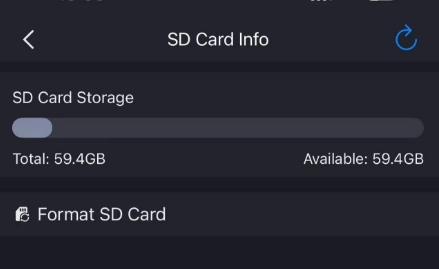
1. Please make sure that camera has detected SD card and SD card has enough space. In order to get a better experience, we recommend that you use an SD card with 4GB capacity or above.
2. Please format the SD card. You can open camera live video on Foscam app then tap on settings-->SD card Recording Settings-->SD card Info, then tap on format SD card.
Note: If camera model is very old, can't use Foscam app to format the SD card directly, but you can connect the SD card to your PC then use Foscam SD card format tool on PC to format the SD card, you can get the tool from https://www.foscam.com/downloads/app_software.html
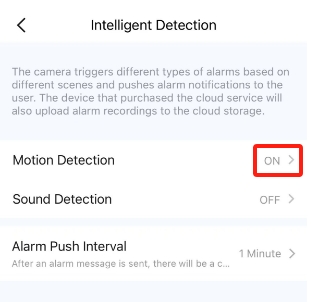
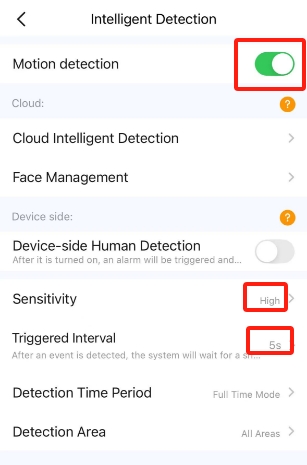
3. Check if detection feature of camera has been enabled. You can open camera live video on Foscam app then tap on intelligent detection to see if detection is on. If not, please turn on it at first. If Motion detection option is already on but you see no alarm message on Foscam app, please set sensitivity to high and trigger interval to 5s and see if you can see alarm message on Foscam app alarm message page.
4. Check if camera timestamp is correct. If not, please update time to latest one.
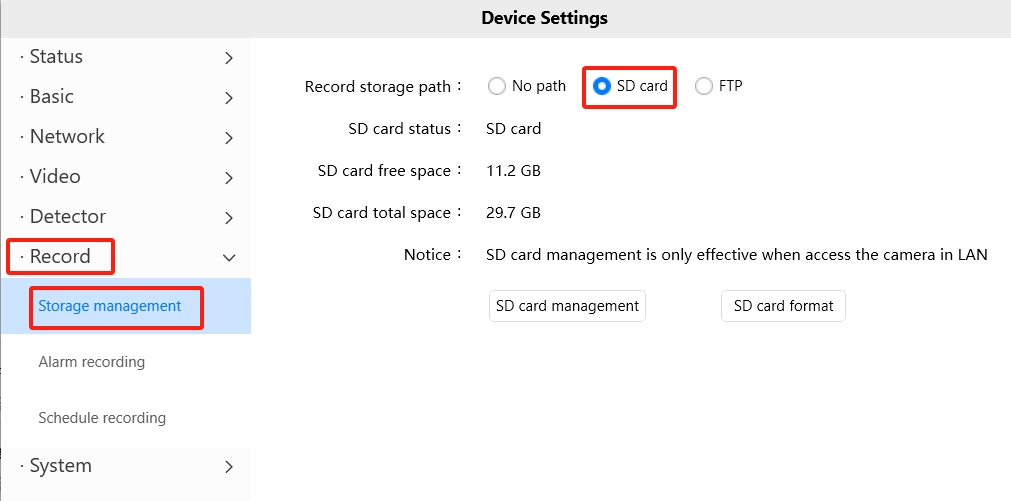
5. Please login camera via Foscam VMS on PC then go to Storage management page, check whether record storage path is set to SD card.
Note: If you never use Foscam VMS to login this camera, no need to do this step.
If you’ve tried all the above solutions and the issue persists, please contact support@foscam.com.
Was this article helpful?
Contact information
Full name *
Email *
Telephone number
Camera model
Help Topic *
Ticket Details
Please describe your problem as detailed as possible so that we can assist you in the best possible way
Title *
Submit