Attentions: Now Foscam new cameras are having random password. With the random password, the camera can not be added to the BlueIris software directly. Please add the camera to the Foscam app on phone or Foscam VMS on PC to set up username and password for the camera first. Then you can add the camera to the BlueIris with that new username and password.
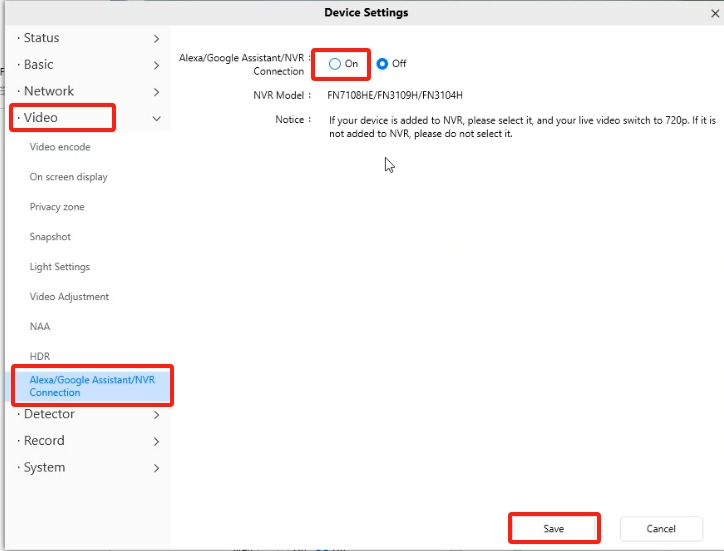
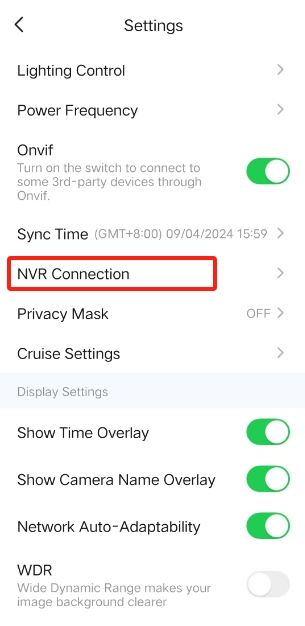
Step1:Open camera settings by Foscam app or Foscam VMS and enable NVR connection for the camera.
On Foscam VMS:Please open real-time live video interface-->Setup-->Video-->Alexa/Google Assistant/NVR connection
Note only few cameras has such options. If you can't see that option, that means your camera has no such feature. No need to do this operation.
On Foscam app: Please open real-time live interface-->Settings-->NVR connection
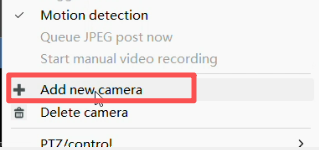
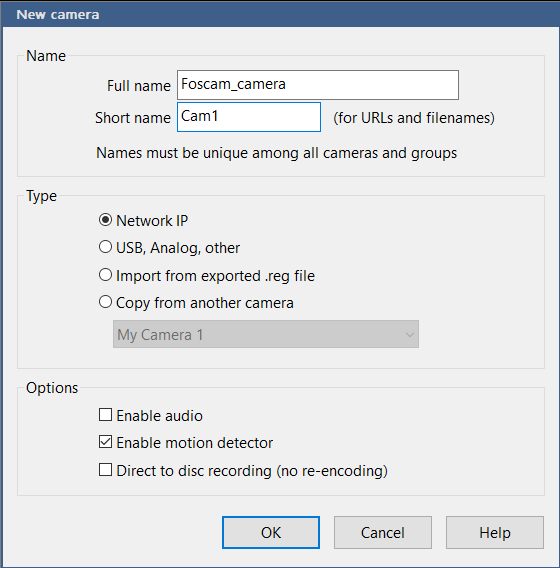
Step2: Open the Blue Iris and go to add “New camera” page. There is no need to modify anything on this page and please click on OK to the next step.
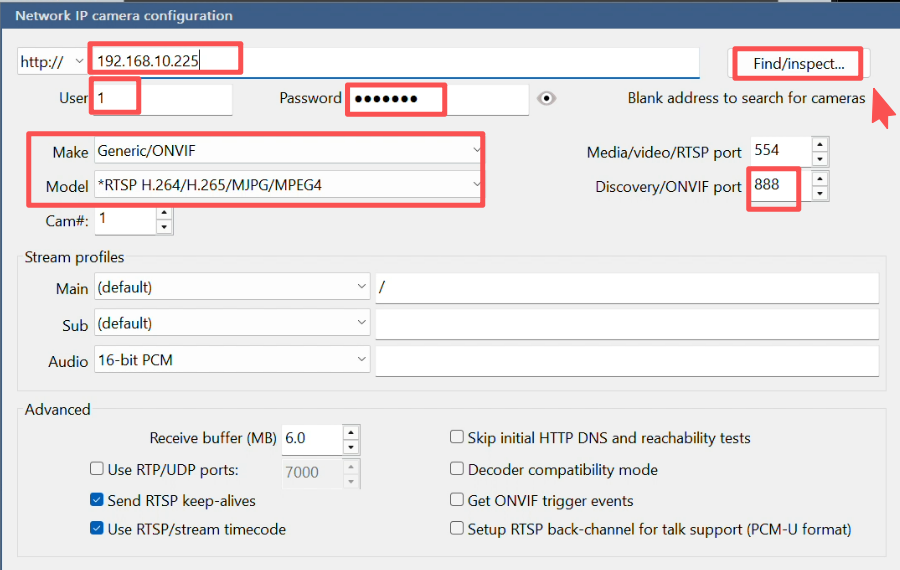
Step3: Manually enter onvif port number 888, enter camera correct username, password, ip address, set the Make and Model fields consistent with the screenshots, then tap on Find/inspect option.
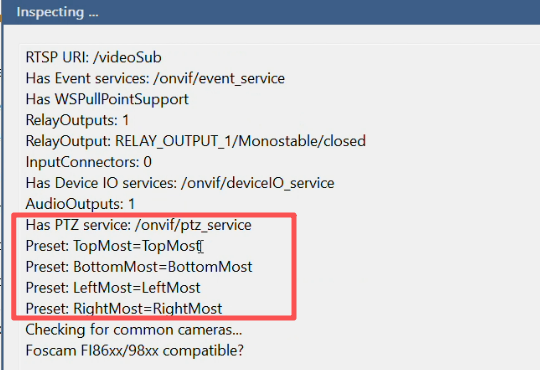
If your camera supports PT feature, you will see such info after you tap on Find/inspect option.
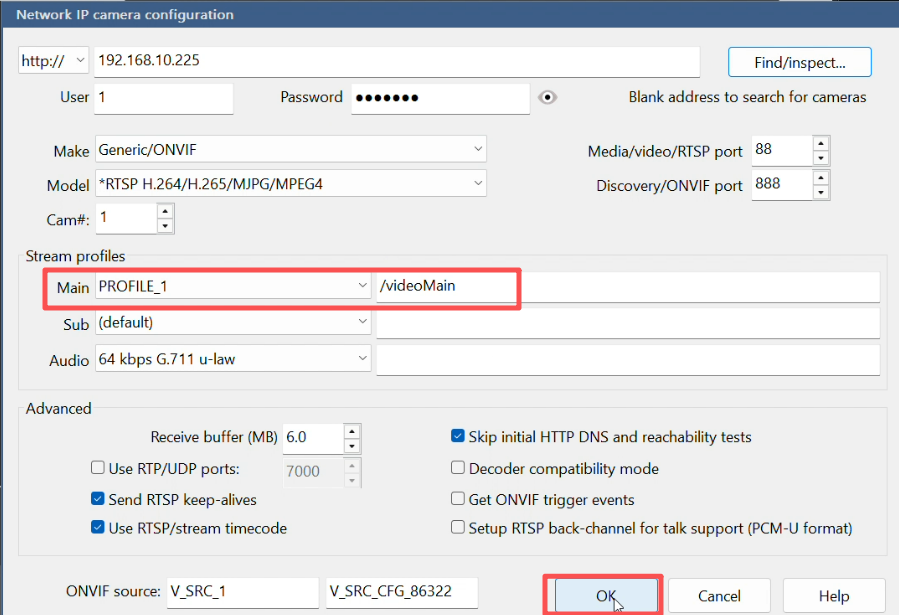
Step4: Check if Stream profiles field was auto-filled. If so, please tap on OK. If not, please fill in the info manually as shown in the screenshot.
Step5: wait for the live video to load
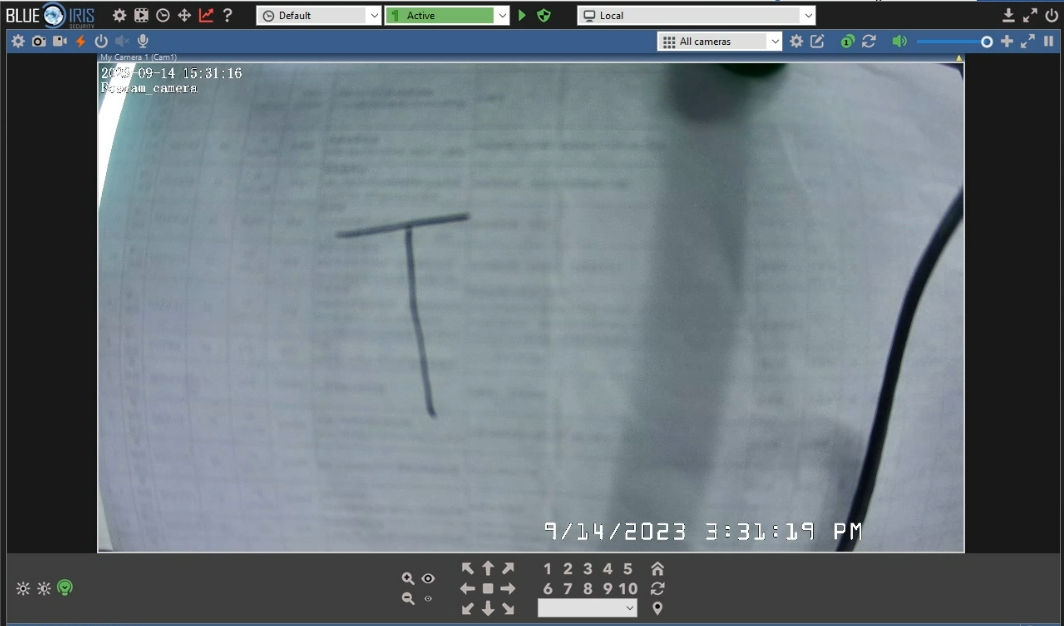
Note: With adding camera by Blue Iris, you can set the camera time, network, username and password, video settings, PTZ, scheduled recording, reboot and reset. But setting the IR-cut and motion detection is not supported. Additionally, the live audio from the camera can be heard on the computer running Blue Iris, but the audio cannot be transmitted from the computer to the camera.